Introduction
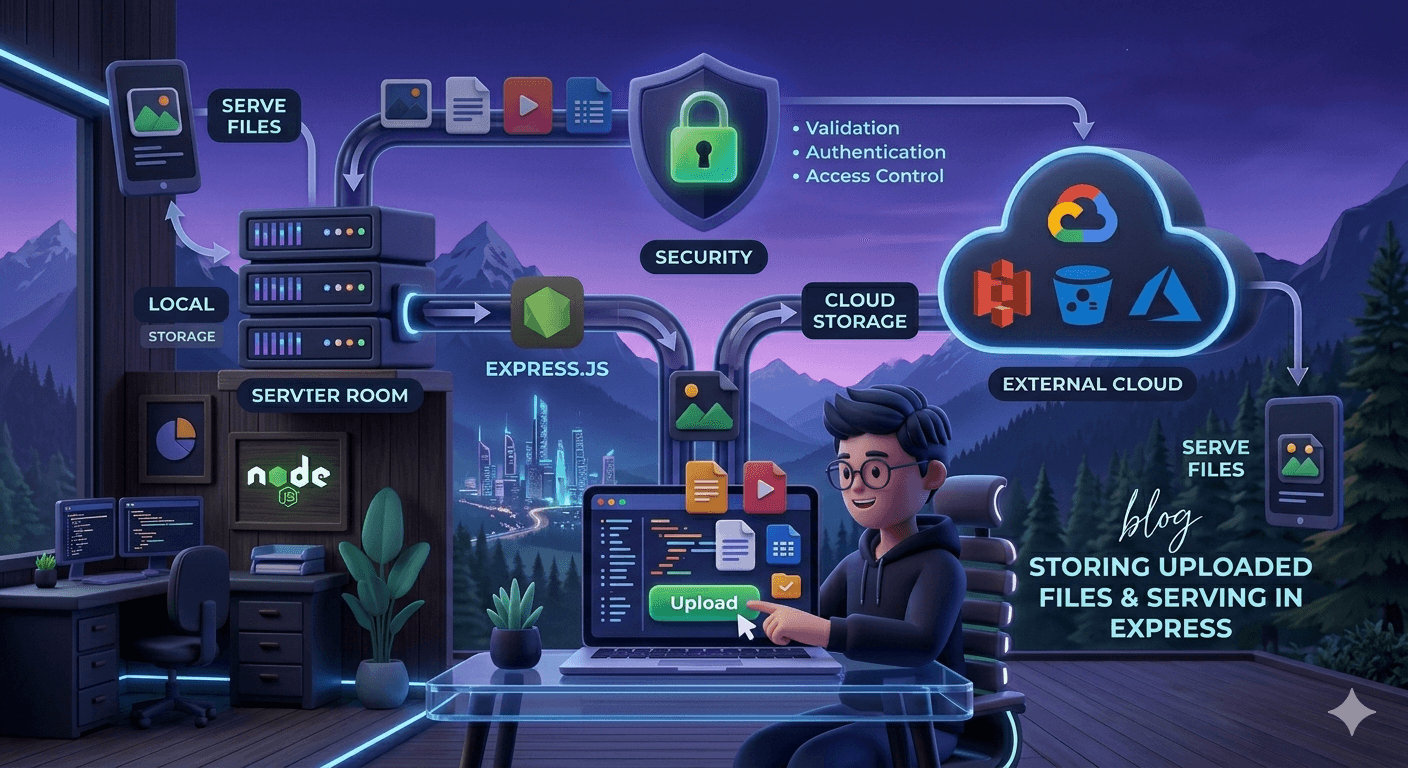
After uploading files to the server using Multer, the files are stored on the application’s disk (inside a folder like uploads). From there, we can serve them directly to the frontend, which can work fine for small-scale applications.
However, when an application has a large number of users and frequent file upload operations, storing files on the server itself is not an ideal approach. It can create storage limitations, scalability issues, and deployment challenges.
In this blog, we’ll understand why storing files on the server is not the best long-term solution and explore better approaches for file storage.
Let’s start with file uploading and storing.
Where Uploaded Files are Stored?
In Node.js, uploaded files are not stored in a single default location; instead, the storage destination is entirely determined by the middleware or library you use to handle the upload.
Local Disk Storage: Most developers use the Multer middleware to save files directly to the server's filesystem. A common convention is to store them in a folder named
uploads/orpublic/uploads/within your project root.Memory (RAM): Middleware like Multer can be configured to use
MemoryStorage, which keeps the file as a Buffer in memory. This is useful for processing files (like resizing images) before saving them elsewhere.Cloud Storage: For scalable production apps, files are often streamed directly to external services like Amazon S3, Google Cloud Storage or Cloudinary.
Local Storage vs External Storage Concept
local storage
Storing files locally in a Node.js application can be suitable for small-scale projects. In this approach, uploaded files are saved in folders like public or uploads, and then served as static files to the frontend.
However, this is not an ideal solution for production-level or scalable applications. Since files are stored directly on the server’s disk, it increases storage usage and can create performance overhead as the number of users and uploads grows over time.
As the application scales, managing disk space, backups, and file distribution becomes difficult. That’s why local storage is generally only recommended for small or prototype applications.
External Storage
External storage refers to using cloud-based services for uploading, managing, and serving files efficiently. Instead of storing files on the server, uploaded files are sent to cloud storage platforms such as Amazon S3, Cloudinary, or ImageKit.
In this approach, files are uploaded from the server to the cloud, and we receive a public URL in return. This URL can be stored in the database and later used to serve the file directly to users.
The main advantage of this approach is scalability and reliability, as file storage is handled externally and does not consume server disk space.
However, there are some drawbacks, such as additional cost and slightly increased latency when fetching files compared to local storage.
Even though it may seem optional for small applications, using external storage is generally recommended from the beginning. Most platforms like Cloudinary and ImageKit also provide free tiers, which are sufficient for small to medium scale applications and startups.
Serving Static Files in Express
Static file serving in Express.js is used to make uploaded files publicly accessible on the frontend. This is done using the express.static() middleware.
Only the files inside the folder that we pass to express.static() become publicly available. For example, if we pass an uploads folder, then only files inside that folder can be accessed through the browser.
Example:
app.use("/uploads", express.static("uploads"));
This means that only files inside the uploads directory will be accessible via URLs like /uploads/filename.
This approach works well for small applications where file storage needs are limited.
Accessing Uploaded Files via URL
When files are uploaded to cloud storage platforms like Cloudinary or ImageKit, they return two types of URLs after successful upload: a secure URL and a public URL.
The public URL is used to access and display the uploaded file directly on the frontend. This URL is typically stored in the database and shared with users for viewing images or files.
The secure URL, on the other hand, is used for internal operations such as deleting, updating, or managing the file in cloud storage. It is generally kept in the database for administrative or backend purposes.
In most applications, the public URL is exposed to users, while the secure URL is used only on the server side for better control and optimization of cloud-stored assets.
Security Considerations for Uploads
Cloud storage platforms such as Cloudinary and ImageKit provide secure credentials for file upload and configuration, including cloud_name, api_key, and api_secret.
These are sensitive pieces of information and should never be exposed in the codebase. Instead, they must be stored securely in environment variables using a .env file.
cloud_name - A unique identifier for your cloud storage account
api_key - Used to identify and authenticate your application
api_secret - Used for secure verification during API requests (must be kept private)
These credentials are required during configuration to authenticate requests when uploading or managing files in cloud storage. They should always be accessed securely through environment variables.
From a security perspective, when files are uploaded, cloud providers return both a secure URL and a public URL. The public URL is used on the frontend to display or access files, while sensitive operations should remain on the backend.
One important security consideration is that sensitive credentials (like API keys and secrets) should never be exposed on the frontend, and only the public URL should be used for client-side file access.
These practices ensure secure and scalable file upload handling in modern web applications.
Conclusion
Uploading and managing files is a common requirement in almost every application. Learning it properly helps you become more confident in backend development and improves your understanding of real-world systems.
Make sure you follow proper security practices, especially when dealing with sensitive credentials and user-uploaded data.
Hope you liked this blog❤️